
When I began writing this post, the 2025 yearly animation challenge on Sheezy.art had just ended, it has now been... too much time but the most common sentiments still are:
"I've always wanted to try animation, but idk where to start"
or
"Animation has such a high and costly entry bar"
and im here to show you that it doesn't need to be.
I'm writing this as a resource and advice repository for animation beginners; and for once I can say I'm qualified to talk about this, as I have a bachelors in Animation.
Trust me this post is LOOOOOOOOOONG you will probably need this, if not for the 1st read through then def when you want to check it in the future or refer back to it, which hopefully you will do! - if people find it helpful at all...
Yes, the dreaded paywall. In animation, it feels like they are EVERYWHERE and you aren't entirely wrong.
But that doesn't mean that animation as an artform is paywalled, or that the only way to get your hands on decent animation software is to "plunder and sail the seven seas" so; where are all the free options ?
Well here is a comprehensive list of free animation programs with their pros and cons and some keywords that describe them.
Now also keep in mind, I will not be including in this list drawing programs that have animation tools in built into them such as Krita, Procreate, or Clip Studio - Not only because some of these are paid but because you likely know that you can animate in them already - if you didn't, maybe double check if your drawing program has a set of animation tools built in.
2D - Desktop [Windows - Mac - Linux ] - Frame by Frame - Video Editing
2D - Stop Motion - Desktop [Windows - Mac - Linux ] - Frame by Frame - Video Editing
2D - Desktop [Windows - Mac - Linux] - Rigged
2D - Desktop [Windows - Mac - Linux] - Frame by Frame - Video Editing
2D - Desktop [ Mac ] - Mobile [Android - IOS] - Frame by Frame
3D - Desktop [Windows - Mac - Linux - Web Browser] - Mobile [Web Browser] - Modeling - Rigged
I was going to include more programs for solely 3D animation but I realised I don't really know any other programs that allow for modeling and animating that are free...
Please feel free to use the comments to extend the list if you know of any, I would like to try them out too!, preferably a program that allows for modelling as well as animation.
3D - 2D - Desktop [Windows - Mac - Linux] - Frame by Frame - Rigged - Video Editing
Stop motion - mobile [Android - IOS] - Frame by Frame
2D - Stop motion - Frame by Frame
And I'm sure there are other programs I have not mentioned, but I do hope I have at least given you a starting place - and if you have a program you think I should have included, then PLEASE, add them to the comments!
with your own Pros and Cons list preferably.
Remember, the comments are also a part of this repository, people will check there for advice too!
If you are completely new to animation, I would imagine there is a lot of terminology that goes WAY over your head, things that more experienced animators take for granted and will spew at you any time you have ever asked about the craft.
So let me break down what all these words mean and detail how to use the tools and techniques they relate to.
Within the timeline is where all of this information is Key (pun intended).
Usually this element is what shows where all your layers and keys are relative to time, ordered in a neat line from frame 0 to whatever frame your animation ends on.
Depending on what program you are using you may also see a thumbnail image of what the frame looks like on screen.
Knowing what framerate your timeline should be running on is quite simple - simply ask yourself "do you want your animation to be smooth like butter or can you sacrifice a couple of frames-per-second to ease your workload?"
The industry standard framerate was 24fps or 25fps for hand drawn animation, but that number can be subjective depending on if you are animating on Ones or Twos, hold on - But what does that mean?
"Okay, but what is stopping me from creating a new drawing every 3, 4, 5 or however many frames I want?
Literally nothing. Just that the ones mentioned above are the most common practices, in fact mixing Ones and Twos is the most common way to animate in studios - and the end result will always look a bit different the more or less frames you use - The way you want it to look is the only factor to consider.
The building blocks of all animation, though over time as technology has adapted, so too did the strict meaning of these words.
In their most basic form "Keyframes" or often shortened to "Keys" refer to pivotal moments in an animation sequence - the start and end of any motion.
In some animation programs - especially ones that support tweening - a keyframe will usually be marked with a small ◆ symbol to show that a key pose has been marked in your timeline. Though not all frames you will end up marking in these programs will be"keys" - that will depend entirely on how you are animating
But for the sake of understanding know: these programs will still call them "keyframes" regardless of where you place them.
Breakdowns aren't just the things that will happen when your animation isn't going right or you are missing a crucial deadline but an actual term that is important for the sake of the animation.
They refer to the moment in-between the keys that changes the flow of the motion you are animating. It's a hard term to explain as for a lot of animation these terms can blur and mix, but hopefully this will help break it down ;)
Though in this case the "breakdown" could also be considered a "key"... I did say the lines can blur! which totally isn't confusing at all /s
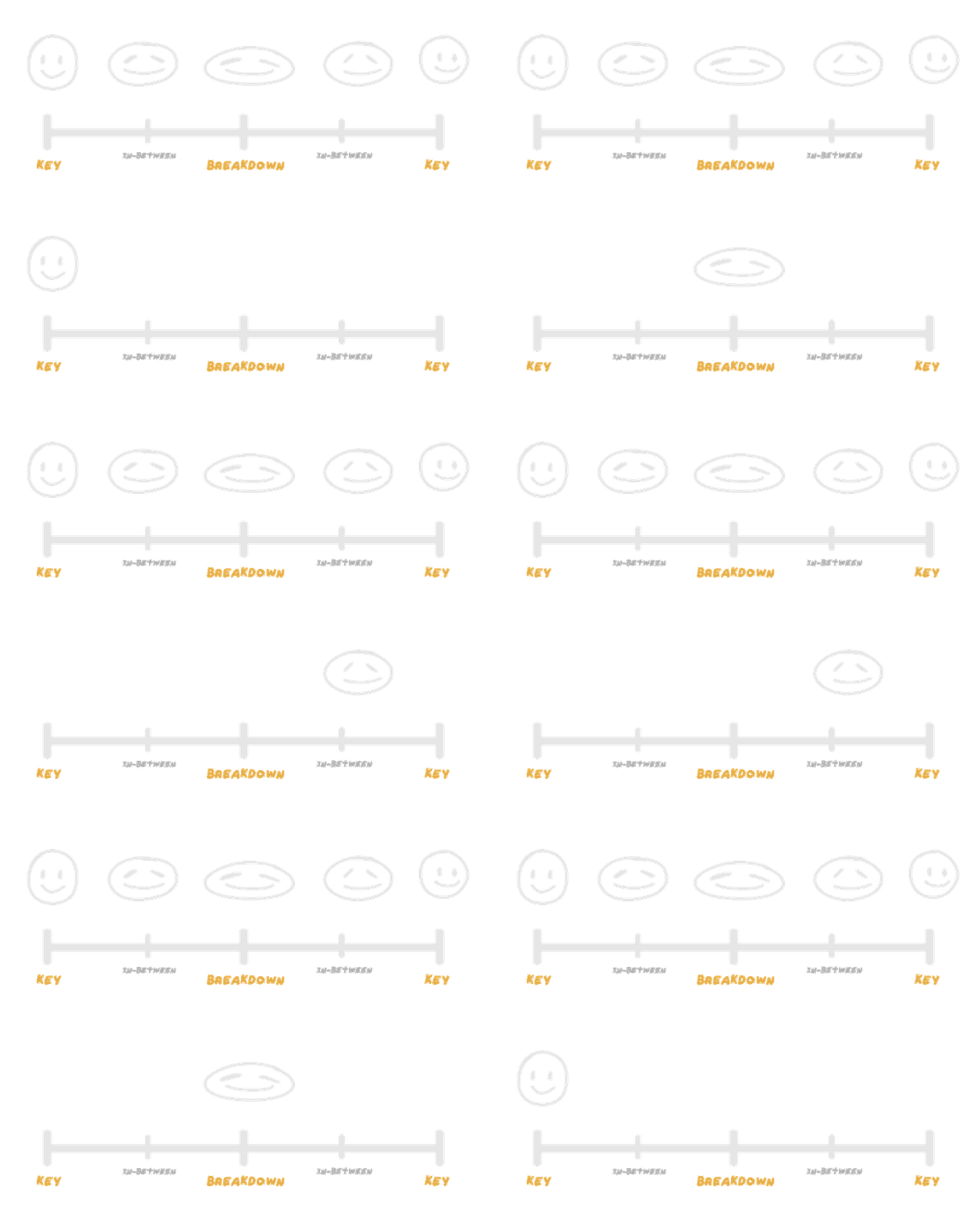
In-Betweens is all the information you fill in from extreme to extreme or key to key to make the movement convincing - they are the fillings of the sandwich where the other 2 are the bread and spread of it - and although its the "filler" it will comprise 90% of your animation.
The more In-Betweens a movement has the smoother it will be usually, though that also depends on your framerate, its a balance, as all good things should be. Get it wrong and you could end up having very smooth slowmo animation or very choppy and quick movements - But maybe that's what you are going for, I'm only here to explain the tools and how they work not dictate how you "should" do something
This is an animation technique that essentially means that you are planning out all your key poses before you get to filling out the rest of the information in-between.
This is the most common way to animate, and seems like the most obvious, to know how your movement is going to stop and start but it is far from the only method.
Animation is entirely contextual, if something you have animated using "pose to pose" is lacking a certain flow and feels almost robotic then you may need to consider the next technique.
Unlike "Pose to Pose" the Straight Ahead animation technique is where you will animate in an almost chronological way, where you will draw frame 1 then 2 then 3, etc until the animation is finished.
You wont be marking the keys or breakdowns in this technique, simply seeing where the motion will go naturally, which is great for some effects animation, tho not so much for things like walkcycles or looping animations,
This term is probably one you have heard before, or not, I'm gonna explain it to you like you are 5 anyway cause that's kinda the point of a beginners guide:
Onion Skining is referring to when you can see the previous or next drawings in your animation, like looking through the skin of a cut onion. The layers other than the working one could be slightly more transparent or tinted in a different colour so you can easily distinguish them apart.
Why is this useful?
because if you can't see where you are going your animation is gonna look weird and disjointed, no one has a perfect memory and trying to remember the position and shape accurately will not work, so having these guides is absolutely the BARE MINIMUM, for any animation software.
Ok, now I'm really explaining fish to a fisherman - look, I know most of you are already artists and are fully aware of what layers are but let me say my peace:
Layers in animation are different to frames and onion skinning, most of the time the program will only show you the onion skin of current layer you are working on, some of them DO have the option to toggle it to the whole animation however it usually isn't the default behavior. And when it comes to frames, each layer will have its OWN set of keyframe information in the timeline.
Layers are also very independent of each other unless specified, when it comes to rigging you will be using them a lot differently than you are used to, with them acting like a way to store the information of your body parts or elements, things to be tweened independently and store crucial information about the pivot points, position and rotation; Along with other program specific info.
Most software will also have folders or groups which will usually act pretty similarly, allowing you to nest and move things together in a sort of hierarchy, though some programs have them purely for organisational purposes using a different set of rigging tools.
In animation the way in which you animate can determine the look, workflow and how you approach setting all of that up - which can be placed into 2 categories
Puppet animation works like its namesake, you are taking images or bones and moving them around like a puppet, manipulating rigged images/models along set pivots, this is the way you would animate if you were working with 3D programs but 2D programs also have tools for this type of animation.
Puppet animation requires a decent amount of setup and prep beforehand to get the model to work and move the way you need it to, but the actual animating part is technically faster than hand drawing each frame by hand.
This is the "classic" way to animate, where in which you draw an image for each frame of the animation, this allows you a lot more freedom from the rigidity of puppets and rigs but does take a considerable time to do, not only are you drawing each frame in the movement but you also need to colour and if you choose to, shade and light the thing you are animating, which is essentially drawing the same thing over and over again at least 4 times, not to mention the amount of frames you need to do that in.
Visually the results are better in this style as the freedom allowed is unmatched but it does come at a time cost. and a cost of sanity... the things we do for the #aesthetic.
Easing and Tweening, though they seem the same and interact with the same principals they are different in some key ways:
Easing is the process where you smooth out the motion on the edges by adding more frames at the start and/or end of the motion, making the middle technically the fastest part of the animation.
This helps the movement feel a lot more natural, animating perfectly liniarly makes the movement mechanical or robot looking, which sometimes is the thing you are going for but for natural movements, easing is the thing to do.
Tweening is the Automatic process of easing motion between frames, the program that has the option for tweening will usually have a couple curve presets for doing so. Where easing is the technique tweening is a function within a program, usually being applied to a program that allows for puppet style animation.
For those who really want to dig deep and dive into animation head first, some advice and a place to continue your journey beyond this journal.
A question that seems to come to mind when asking about learning something new is "What do you wish someone told you before starting?"
Quite honestly there is probably a lot of questions and I will try my best to answer in the comments if it isn't something you see mentioned here, keeping in mind I want to keep the advice as general as possible and steer away from advice about animation as a career.
Because quite honestly the industry as a professional animator is a dumpster fire right now.
"Don't rely on one or few programs and apps, try them all, learn the fundamentals without them. A basic knowledge on how to do things the long way will GO a long way. - Dax
Some time ago as of writing this section, Adobe decided to remove their support from Adobe Animate and while they later backtracked on that decision because of how stupid it was ... AHEM
It really hammers home that no software, no matter how popular, is safe from one day being taken off of the internet permanently.
On that note also backup your files"
"The hardest part about animating, or anything really is starting. What I mean is, the hardest part is actually beginning the process, opening whatever you use to write with and planning out a script, getting pencil to paper actually STARTING - Dax
I myself am horribly guilty of saying "I'll start tomorrow" knowing full well the longer I idle, the higher the chance I will simply abandon the thing I wanted to do.
Ignore all the fear of being bad, the fear of it looking like shit, of it not adhering to your expectations, the hopelessness and apathy of nothing being worthwhile and for once start.
I promise you it will be worth it"
"Animation doesn't have to be perfectly clean and on model 100% of time, developing perfectionism in that regard gets you working slow and second-guessing yourself. Go with the flow - Natka
That being said:
Reference your character sheets! They are there for a reason! most animators just paste it into their files to keep characters on model, they don't magically do it with their brains.
First sketch pass should be done on your own so it's not too rigid and it captures the emotion/gesture naturally, but then for the keyframes you can put the reference over the character on low opacity and make sure it's not wobbly"
"If you wanna animate something in a specific rhythm, but it's not working out, just film yourself moving to that rhythm and put that into your file, so that you see how it be should spaced out. - Natka
When animating a body in movement, aside of getting video references online, just get up and do that movement first (if possible). I find it helps to feel it in person, it makes you realise where the movement is coming from and then it's easier to put it into the rough"
"For learning 3D software, experimentation is your best friend. So much of it is clicking random buttons and messing around on purpose. Tutorials do help, but they should be used as a way to get ideas on how a process could be done. They can get you close to a desired outcome, but you can always make edits to make it work better for you.
- Kai
This is more blender specific, but don't waste time doing things manually when 80-90% of the time there's a button for it. Just yesterday I was smoothing out the ship by hand for a good hour(it was irking me) when I discovered there's a smooth vertex button that got it done in minutes. Blender has a shocking amount of add ons and built in tools to make a tedious process more manageable.""
"This is some more random Blender advice, but when making spheres, do not use the sphere mesh. It does not have good editable topology. - Kai
Instead, use the subdivide modifier on a cube. Same result, better topology. Sphere works in a pinch, but you can't really do much to it easily.
Oh! And save each part of the process in a separate file as you go!"
"Don't be afraid to work with others, just because you're an animator doesn't mean you also have to be a background artist, composer, character designer, ect. - Avery
MAP's (Multi Animator Projects) and collaborations with friends are a great place to learn animation, and potentially meet people with similar interests"
Here I have linked some resources that may help those who want a place to start when learning some of the programs mentioned and when it comes to learning the techniques to make your animation look
As this journal only really focuses on giving you a starting place more on the technical side of things rather than explaining how to make your motion fluid and natural. - Tho all the tools to do so are here in their most basic form.
A list of useful Blender plugins for beginners, helpfully provided by Kai
You did it, you reached the end.
If reading this has taught you anything it's that there is always a way for you to make things, that there's plenty of people out there who wish you nothing but creative freedom.
Despite all your roadblocks, like many; you choose tokeep arting. - Dax